
How to connect a Facebook page to ManyChat #
basic requirements: #
- At least one Facebook page
- Admin role on the Facebook page
- 3 to 5 minutes
How: #
This step is simple but crucial for your success!
If you encounter issues connecting the Facebook Page to ManyChat, ask yourself the following questions to start the troubleshooting process:
- Do I need to set up an admin on the Facebook page?If not, ask the page owner about the admin status on the Facebook page to be connected.
- Am I using Internet Explorer to set up ManyChat?If so, try switching to the latest version of Chrome.
- Is Messenger enabled on my Facebook page? Make sure the messaging option is enabled in the page's general settings.
Connect Page #
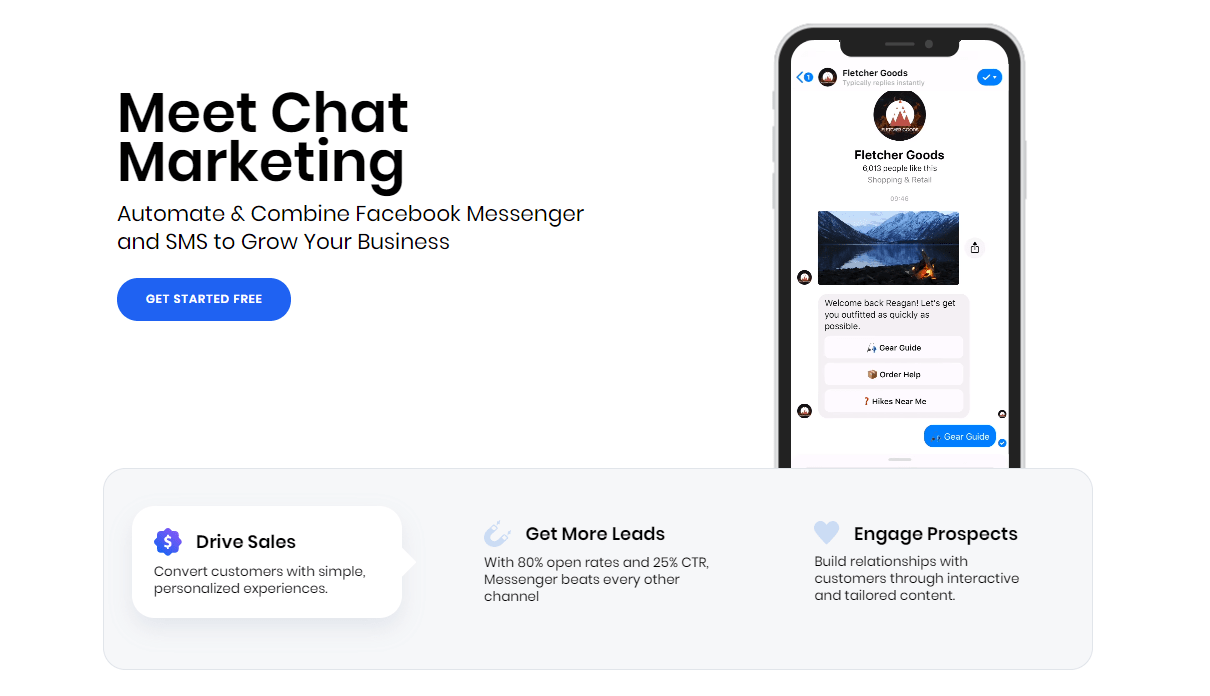
Connecting the page is the first step to getting started with ManyChat. After clicking on Get Started for Free,
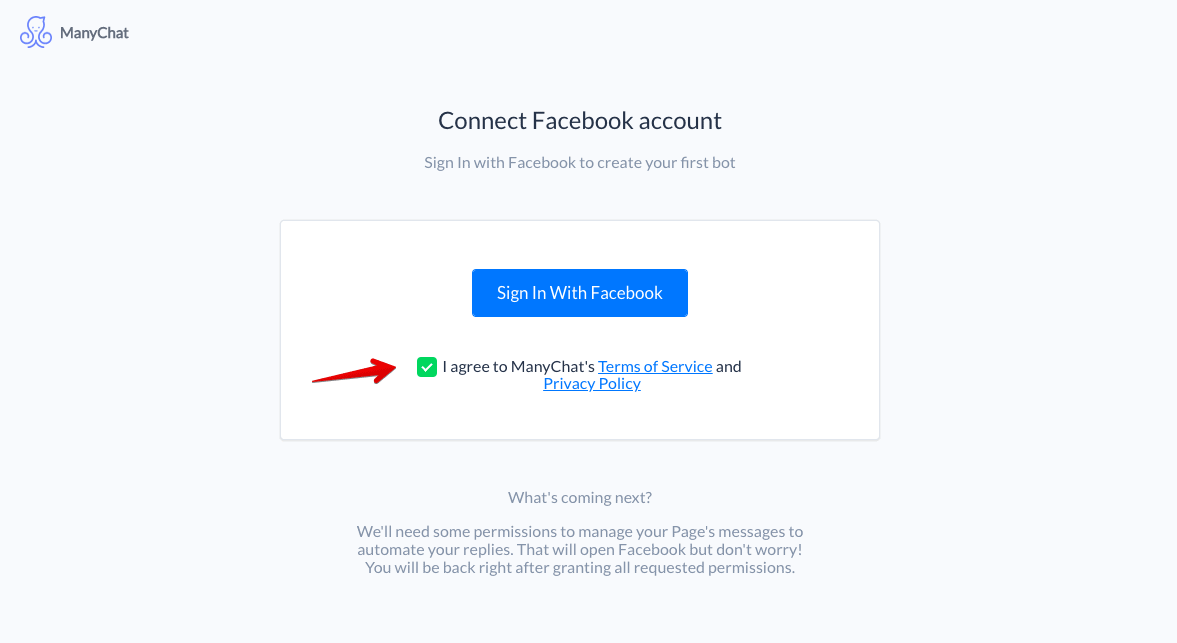
you will see the “Log in with Facebook” button - click it to confirm that you have granted ManyChat the necessary permissions, which you can check by clicking on the ManyChat app inhttps://www.facebook.com/settings?tab=business_toolsthe top.
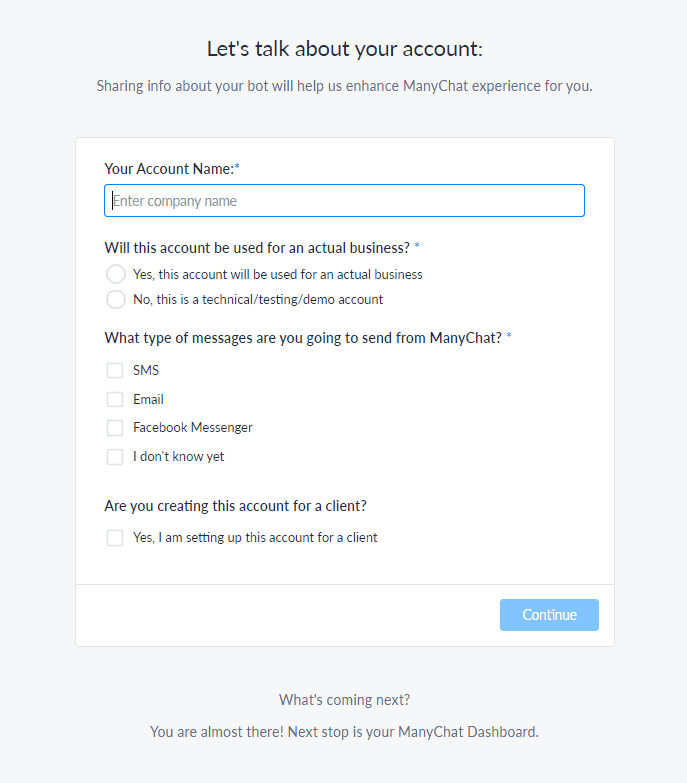
After logging in with your personal Facebook account, you will be prompted to fill out a very short questionnaire and give youraccount aname.
Once completed, click “Continue” - it will take you to the dashboard:
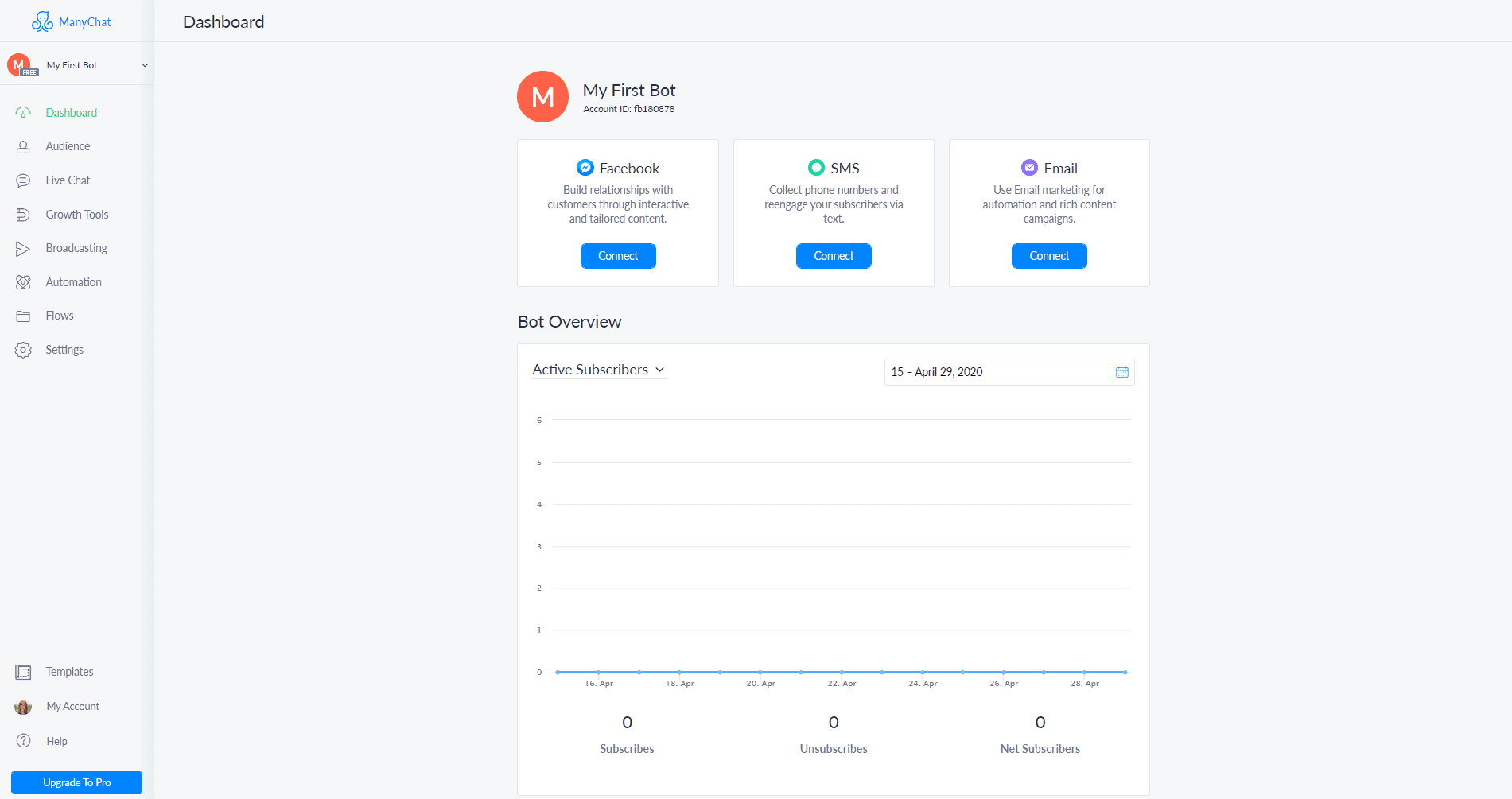
Finally, to connect your Facebook page, click “Connect” under the “Facebook” channel. You will see a list of Facebook pages that can be added to the system. Please note that you should be assigned an admin role on the Facebook page, and the page itself should not have any age or country/region restrictions. If the page is restricted to a specific age or specific country/region, ManyChat will not function properly.
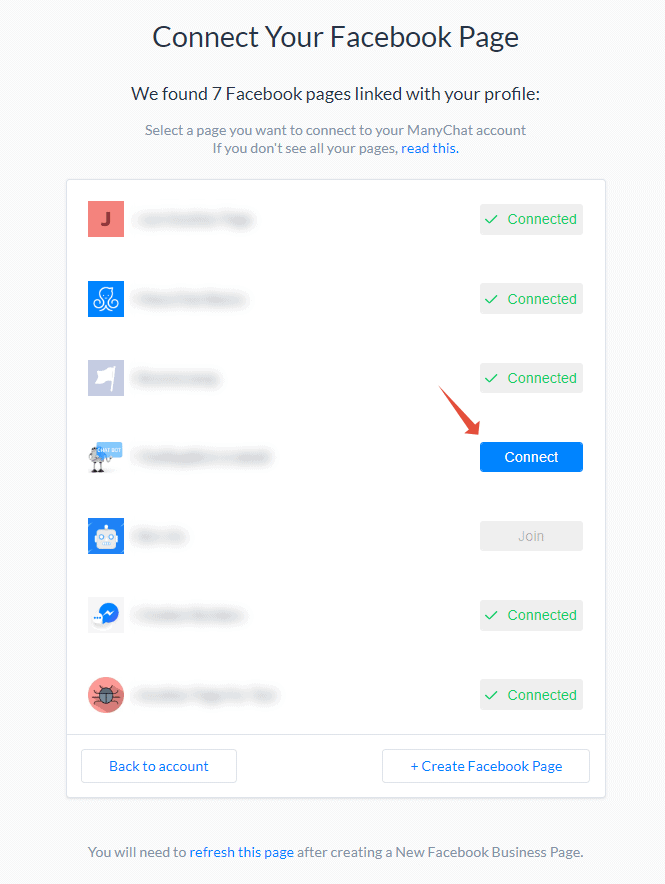
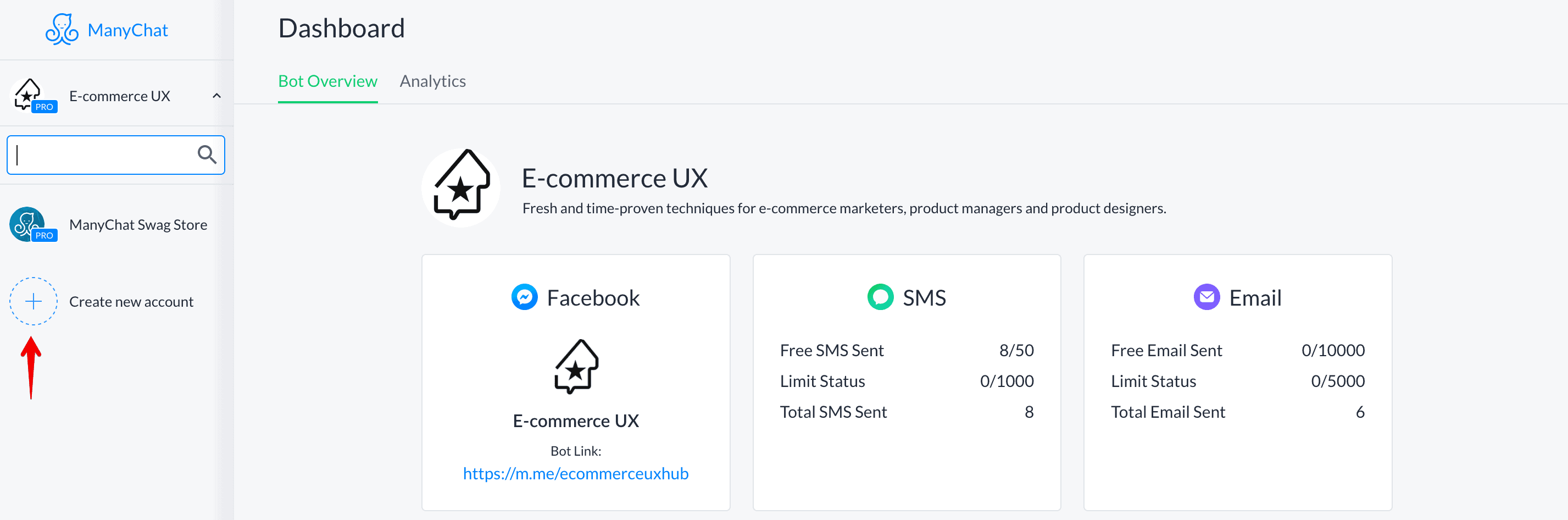
In the future, if you want to add more pages, simply click on the page avatar in the upper left corner and connect another page in the same way as the first page.
If you see the “Join” button in the screenshot below, it indicates that the page has been connected to ManyChat by another Facebook admin. You cannot create another account for it, so you need to join the existing account by clicking this button.
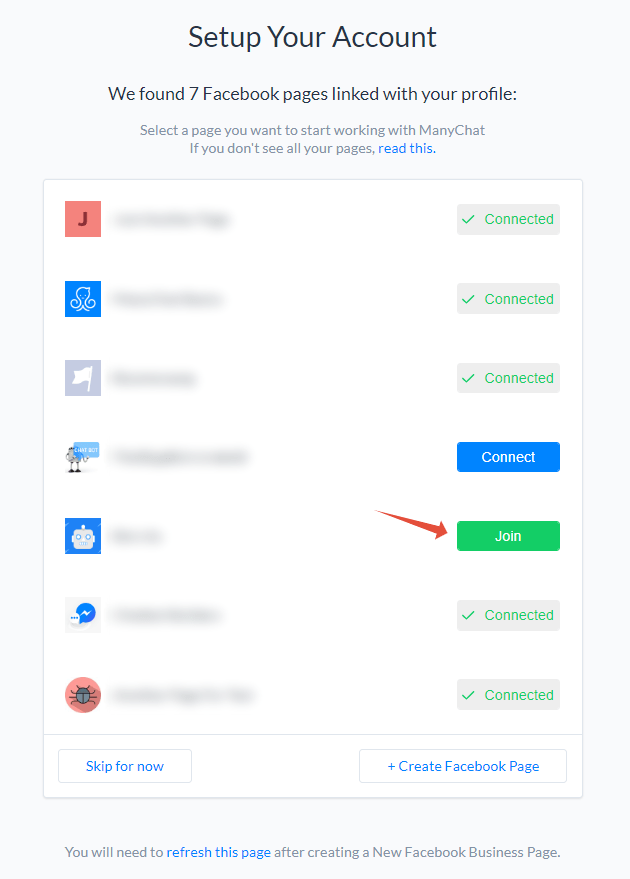
You can alsojoin through an invitation linkgenerated by the current ManyChat admin for your account.
If you mistakenly connected the Page, or just want to pause the ManyChat bot on it for a while, you can choose to disconnect the Page in the Settings tab. Don't worry - your set subscribers and automations will not be deleted! You can always re-enable the bot by reconnecting the Page.
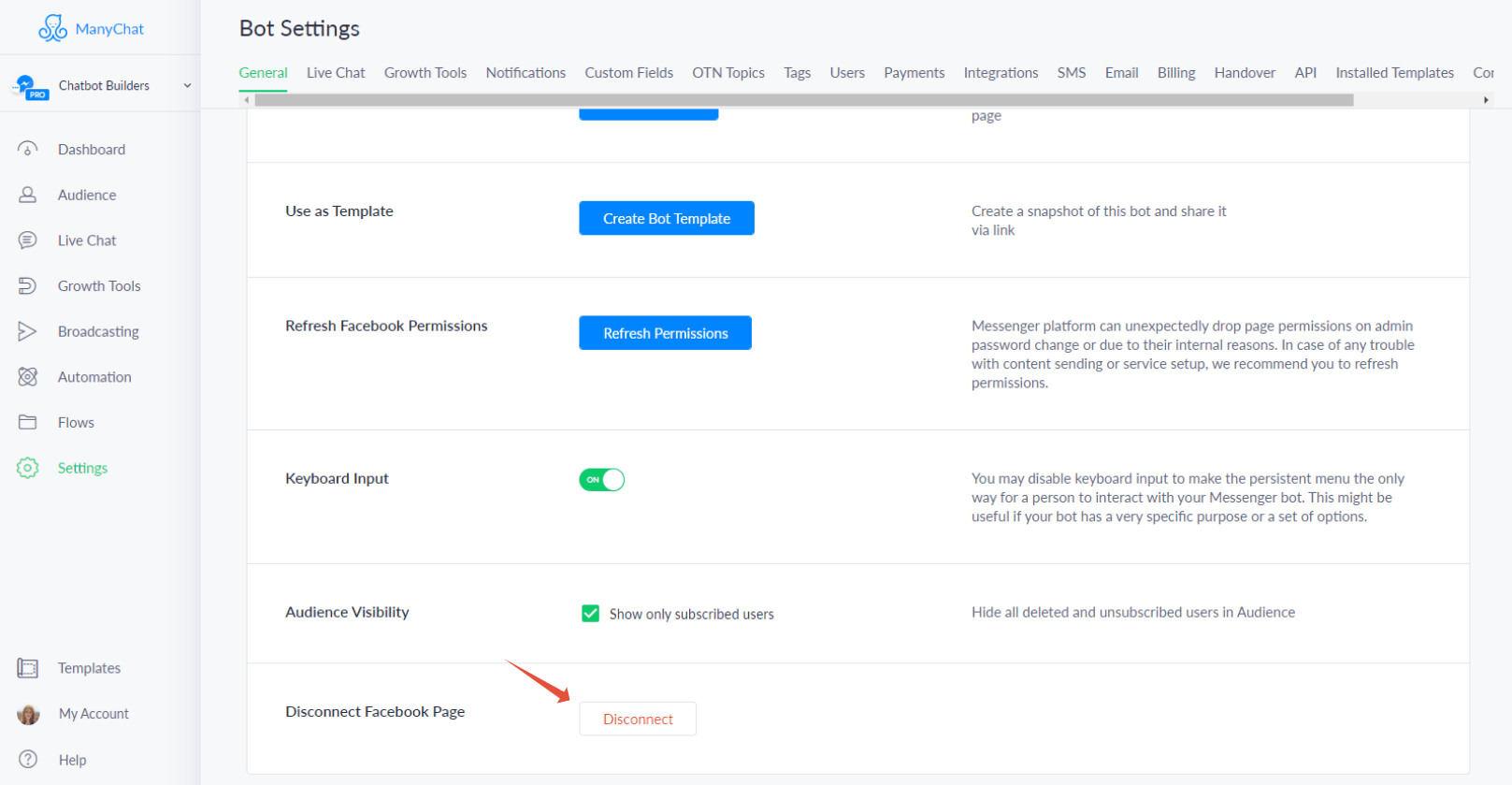
Note:Once the page is connected to the account, no other pages can be connected to that account, nor can this page be connected to other accounts. Currently, it is also not possible to delete or hide the account.


